


Always On AMOLED
4.42.52K Reviews
App Specs
- Version
- 3.2.0.1
- Updated On
- License
- Free
- Downloads
- 10,000,000+
- Developer
- Firehawk
- Categories
- Personalization
- Platform
- Android
Screenshots
 Analysis by AppCompare
I tend to judge an always-on display by a simple test: can I get useful information from my phone without turning a quick glance into another screen session? Always On AMOLED is a personalization app from Firehawk that brings a persistent display to devices without a built-in version. It is free to install, though it offers in-app purchases, and its appeal is practical as much as visual. For me, the central question is not whether a glowing clock looks attractive, but whether the information stays easy to read and genuinely reduces unnecessary tapping.
Readability and navigation at a glance
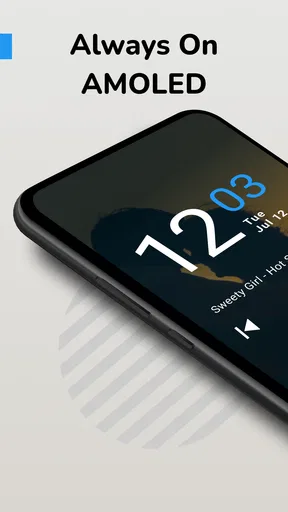
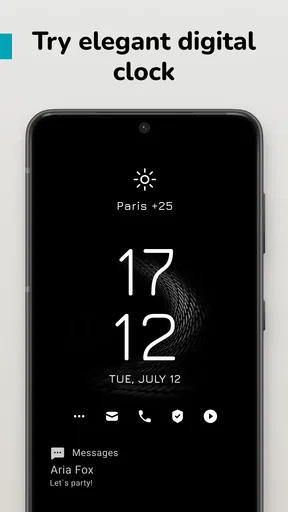
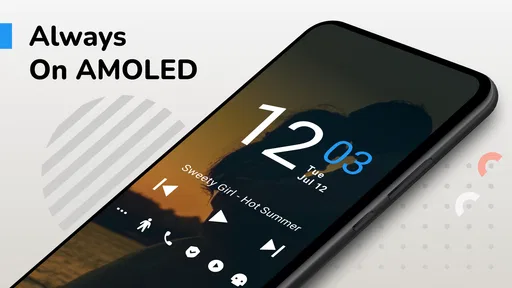
The basic idea is straightforward: keep details such as the time, date, and selected notifications visible while the phone is idle. That can be useful when my phone is on a desk during work or beside me at home. Rather than picking it up, unlocking it, and getting pulled into other apps, I can check whether anything needs attention with a glance. That small change is most valuable when I want to stay focused, not when I am already using my phone.
In the personalization category, this takes a different route from a wallpaper or icon pack. Those change how the home screen looks after I wake the device; an always-on display changes what I can see before unlocking it. Compared with a phone’s built-in always-on feature, an app-based option can help on a device that lacks one, but it also relies on the phone’s display and software behaving well together. If your phone already has a native display that you like, its built-in option is usually the simpler place to start.
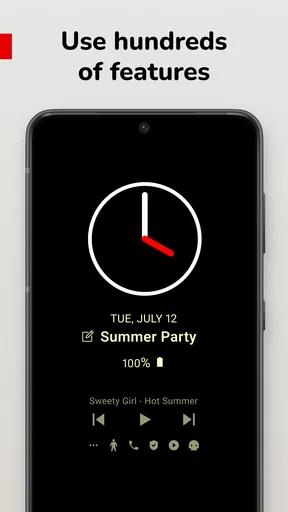
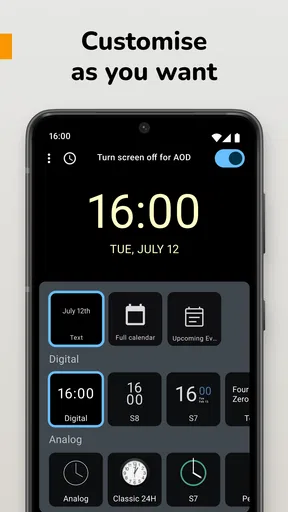
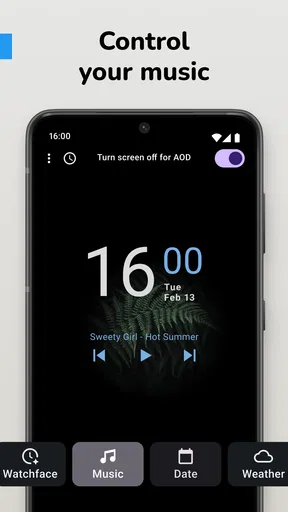
The app has clock designs and custom text, so I can make the idle screen feel more personal without turning it into a busy dashboard. My practical tip is to treat the display like a small information panel: choose only the details I really check, then see whether the result is readable from the distance and angle where the phone usually sits. Adding more visible information can make a glance less useful, especially if the screen is small or the room is bright.
Setting Up Always On AMOLED
Getting started with Always On AMOLED is as easy as pie. Once you download it from the app store, you’re greeted with a straightforward setup process. You have the option to customize what appears on your screen, from clock styles to notification settings. I found it pretty intuitive, with a simple interface that guides you through each step.
One of the neat features is the ability to choose from various clock designs and even add your custom text. It’s a nice touch that adds a bit of personality to your phone’s display. Plus, if you’re worried about screen burn-in, the app smartly shifts the display’s position periodically to avoid this issue.
Motor and sensory considerations
The hands-free glance is the most inclusive part of the idea: I do not have to grip the phone or repeatedly use a small unlock control just to check the time. That can be convenient when I am carrying something, when the phone is propped up, or when repeated handling is tiring. Gestures can also make certain interactions quicker, but they require a deliberate touch, so they are not a replacement for hands-free access to every action.
Worth Reading Before You Choose

EA SPORTS FC Mobile 26 Is a Bigger Football Game, but It Takes Time

Flipboard Shows What News Apps Must Do Beyond the Feed

Switching to Android Auto Means Rethinking Your Driving Routine

Google Calendar Makes a Crowded Week Easier to Manage

Ludo King Makes the Most of the Minutes Between Plans

Baby Panda World Brings Quick Play to Modern Phones, but Its Game Library Feels Busy
Readability is personal. A dim screen can be more comfortable in a dark room, while the same setting may be hard to see in daylight or for someone who needs stronger contrast. I would test the chosen clock style in the places I actually use the phone rather than assuming that a design that looks clear in the setup screen will work everywhere. Custom text can help make the display feel familiar, but it does not necessarily solve small-text or contrast needs.
User Experience
Once set up, the experience is seamless. I loved how the app manages to keep the screen dim enough to save battery but bright enough to read at a glance. You can interact with the display using gestures, like double-tapping to wake the phone or swiping to dismiss notifications. It’s all about making life a little easier and more efficient.
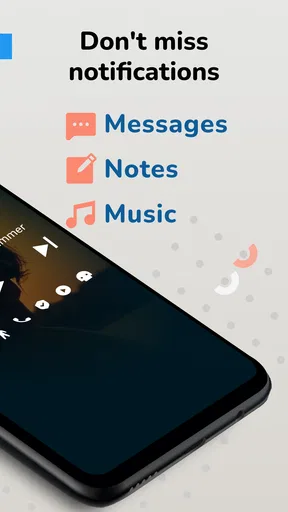
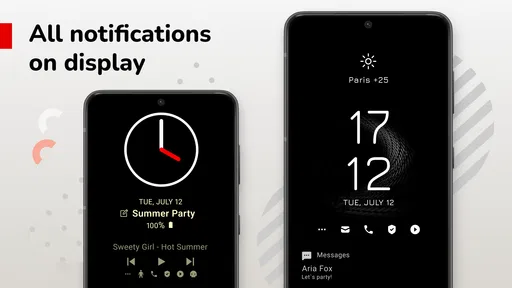
Another cool perk is the app’s ability to integrate with your notifications. You can choose which apps you want to receive notifications from, and they’ll pop up on your always-on display. I found this feature particularly useful for keeping track of messages and emails without having to unlock the phone constantly.
Situational access: where it earns its place
A realistic use is keeping the phone on a stand while cooking. I can glance at the time between steps without touching a screen with messy hands, then decide whether a notification matters before picking the device up. At a desk, the same setup can make incoming messages visible without opening each one. The useful habit is to select only the notification sources that matter in that setting; otherwise, the display can become a steady stream of distractions instead of a quiet status check.
It is also worth thinking about privacy in shared spaces. A notification visible on an idle screen may be convenient at home, but less welcome on a crowded desk or in a public waiting area. I would limit which apps appear there when other people can see the phone. This is a practical trade-off, not a flaw unique to this app: persistent information is useful precisely because it is visible, and that visibility can expose more than I intend.
The app is a good fit for someone who likes glanceable time and selected alerts, has a phone without a satisfying native always-on display, and is comfortable trying display settings until they suit their routine. It is less suitable for someone who prioritizes maximum battery endurance, wants a completely distraction-free screen, or relies on a screen reader and needs the idle display itself to be spoken aloud. If accessibility depends on reliable spoken navigation, the phone’s established accessibility tools and a native display may be a better starting point.
Battery Efficiency
A common concern with always-on displays is battery drain. Thankfully, Always On AMOLED is designed to minimize power consumption. On average, it uses about 0.5% to 1% of battery per hour, which is pretty efficient. This is largely due to the dark backgrounds used in the app, which are ideal for AMOLED screens.
Of course, the actual battery usage can vary depending on your specific device and settings. But, in my experience, the impact on battery life was minimal and well worth the convenience it provides.
Battery and device trade-offs
I would not assume that every phone will use the same amount of power. The display technology, brightness, chosen content, and the way the device handles an app keeping information visible can all affect the experience. A sensible trial is to use the display during the hours when you most often want it, then compare how the phone feels over an ordinary day. If the battery cost matters more than the convenience, switching it off when away from a charger is a straightforward compromise.
The app’s screen-position shifting is intended to reduce the risk of burn-in, but it should not be mistaken for a guarantee that every screen is immune to long-term wear. I would be more cautious on a device with a display I already worry about, and avoid leaving a bright static image on for long periods. This is a case where restraint is useful: keep the design simple, use a comfortable brightness, and treat an always-on display as a convenience rather than a reason to keep the screen vivid all day.
Remaining barriers and alternatives
An app-based display cannot make every device behave like a phone designed with always-on use in mind. The result depends on the handset’s screen, battery condition, and software handling, so setup may take some adjustment. If the app does not stay visible reliably or feels awkward on your particular phone, a native always-on setting is the more direct alternative where available. If neither option is dependable, using the lock screen when needed is less elegant but avoids adding another persistent display layer.
There is also a difference between seeing a notification and being able to act on it. The display can help me decide whether an alert deserves attention, but replying or handling a more involved task still means interacting with the phone. For someone trying to reduce interruptions, that separation is actually useful; for someone who expects the idle screen to replace normal notification controls, it may feel limited.
Firehawk’s app has an average rating of 4.4 from around 241,000 ratings, and it has been installed over 10 million times. It is rated for everyone, which makes it broadly approachable, but that does not mean its small, dim, persistent interface will suit every person or setting. Its current version is 3.2.0.1, and it runs on Android 6.0 or later. I would check that my particular phone handles the display comfortably before making it part of a daily routine.
Is It Worth It?
So, is Always On AMOLED worth downloading? If you’re someone who likes to keep tabs on notifications or simply enjoys having a stylish clock on your screen, then absolutely. It brings a level of sophistication and practicality to your smartphone that’s hard to beat.
Whether you’re waiting for an important email or just want a quick glance at the time, this app keeps you connected without the hassle. Plus, the customization options mean you can tailor it to fit your style perfectly.
It is free to try, with in-app purchases ranging from $0.99 to $99.99 per item, so I would start with the basic experience and decide whether any paid option adds something I personally need. The number of purchases does not change the main decision: first see whether the display is legible, stable, and worth the battery trade-off on your phone. For a reader who wants a quick glance rather than another elaborate home-screen makeover, that test is more useful than choosing a style based on appearance alone.
In conclusion, Always On AMOLED is a nifty app that delivers on its promise of providing a convenient and stylish always-on display. It’s easy to set up, user-friendly, and doesn’t significantly drain your battery. If you’re looking to add a touch of flair and functionality to your phone, give this app a try. You might just wonder how you ever lived without it!
An inclusive verdict for everyday use
I see this as a focused convenience, not a universal accessibility solution. It can reduce the need to pick up and unlock a phone for quick checks, and its clock and notification choices let me keep the idle screen relevant. The strongest approach is to customize sparingly, test readability in both bright and dim surroundings, and keep sensitive alerts off the display when privacy matters.
If you enjoy glanceable information and your device handles the screen comfortably, it is worth trying. If you need spoken access to the idle display, dislike a lit screen, or cannot spare the battery, I would skip it and use a native option or the regular lock screen instead. That is the honest balance: useful at-a-glance access for the right phone and routine, with real limits for people who need more than a visible clock and selected alerts.
Pros
- Customizable display options.
- Low battery consumption.
- Always-on notifications.
- Supports multiple widgets.
- Easy to set up.
Cons
- Limited free features.
- Ads in free version.
- May not support all devices.
- Occasional bugs reported.
- Requires some permissions.
FAQs for Always On AMOLED
What is Always On AMOLED and how does it work?
Always On AMOLED is an app designed to keep a portion of your screen active even when your phone is on standby. This feature displays essential information like time, date, and notifications on the screen without unlocking the device. It utilizes AMOLED technology to light up only the necessary pixels, conserving battery life.
Does Always On AMOLED significantly drain battery life?
Always On AMOLED is designed to minimize battery consumption by using AMOLED technology, which lights up only the necessary pixels. While it does consume some battery, the impact is minimal. Users have reported a slight decrease in battery life, but it largely depends on the display settings and usage patterns.
Can I customize the display settings in Always On AMOLED?
Yes, Always On AMOLED offers extensive customization options. Users can personalize the clock style, font size, color schemes, and display orientation. Additionally, the app allows you to choose which notifications are shown and even set custom images or text. This flexibility makes it easy to tailor the app to individual preferences.
Is Always On AMOLED compatible with all Android devices?
While Always On AMOLED is compatible with most Android devices, it works best on phones with AMOLED screens. Devices with LCD screens might not experience the same battery efficiency, as the entire screen lights up rather than just the necessary pixels. It's advisable to check compatibility with your specific device before downloading.
Are there any in-app purchases or subscriptions in Always On AMOLED?
Always On AMOLED offers both a free version and a premium version. The free version provides basic features, while the premium version, available through a one-time purchase, unlocks advanced features and additional customization options. Users can choose based on their needs and preferences without any ongoing subscription fees.


